
A human approval gate for supplier invoices in n8n
Invoice extraction is only the first step in an accounts payable process. A structured invoice can still name the wrong vendor, exceed a purchase order, reuse an old invoice number or point to changed bank details. The Invoice Approval Audit and Exception Queue template puts those checks before a human approval decision.
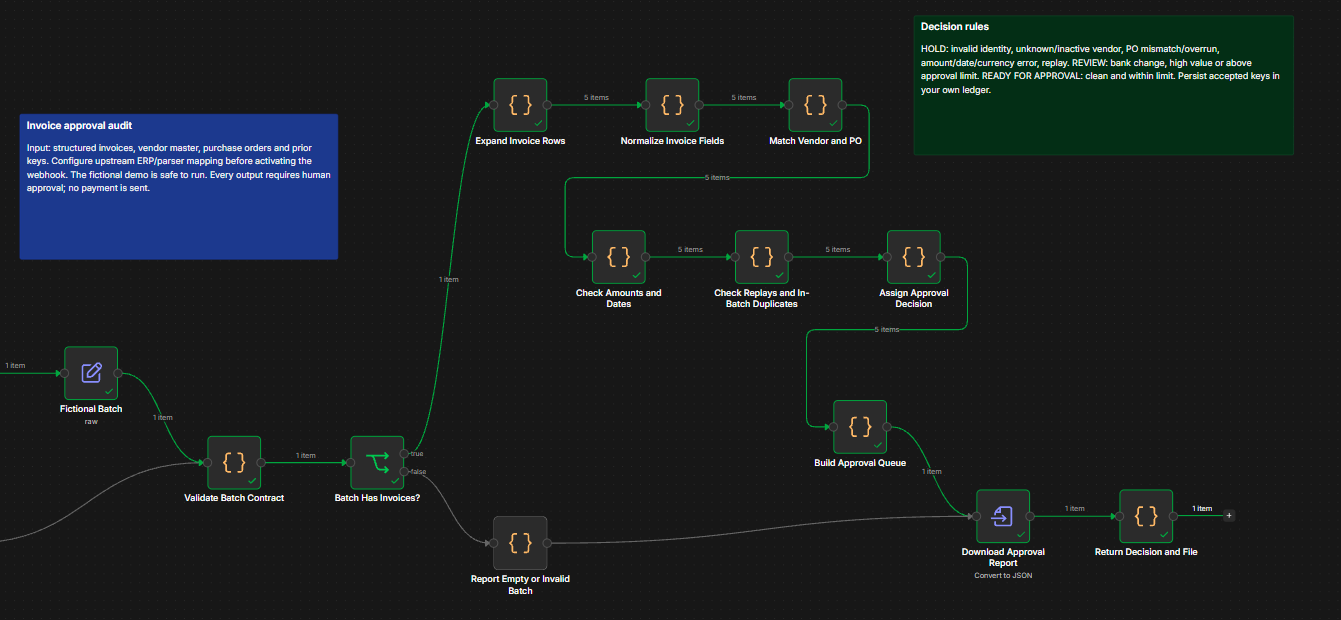
The revision 0.1.1 n8n editor canvas, with an overview and numbered notes explaining input validation, invoice controls, and report review.
The Institute of Financial Operations & Leadership's 2025 report found that 63% of surveyed AP professionals spend more than ten hours a week processing invoices. That makes the review step a useful place to reduce repetitive checking while preserving human control.
Start with reliable source data
Send the workflow a JSON batch containing invoices, your current vendor master, open purchase orders and previously accepted invoice keys. An ERP export or a document extraction workflow can prepare the payload. The template expects fields that have already been extracted; it does not read PDFs or infer values from images.
The first gate validates the batch shape and size. It reports an empty or malformed batch without processing any invoice. For each invoice, the workflow normalizes identifiers, matches the vendor and PO, checks amount arithmetic and dates, then detects keys already processed or repeated in the same batch.
Route exceptions to a person
Each row receives one of three decisions. A hard mismatch or duplicate goes to hold. A bank last-four change, high value or total over the normal approval limit goes to review. Clean invoices within the limit become ready_for_approval. All three require a person to make the actual approval decision.
The output includes specific flags, a suggested queue owner and a JSON report. A second copy is downloadable from the final n8n node. No money moves, and the template does not email supplier information or update accounting records.
Keep duplicates from returning
The workflow compares each invoice's vendorId|invoiceNumber key with priorInvoiceKeys supplied in the batch. After a human accepts an invoice, save its key in your ERP or ledger and send it in future batches. That external ledger is essential for cross-run checks; an n8n execution alone cannot prevent concurrent batches from accepting the same invoice. If your volume is high, add a database uniqueness constraint or transactional reservation at the integration point.
Try the fictional batch
The built-in five-invoice demo produces one item ready for approval, two for review and two on hold. It shows an old invoice key, a bank change and an unknown vendor. You can inspect the whole queue before connecting an ERP or activating the webhook.
The linked template includes an actual n8n editor screenshot and a free JSON download. Review its setup instructions before connecting live invoice data.
Have a process eating your team's time?
Book a free 45-minute scoping call — no obligation.
Book a call